Reduce Microphone Background Noise in Windows 7
Step 1: Plug in your microphone
Step 2. Go to your Windows Start button.
Step 3. Go to Control Panel.
Step 4. Select "Hardware and Sound".
Step 5. Under "Sound", select "Manage audio devices".
Step 6. Go to the "Recording" tab.
Step 7. Right click your microphone and select "Properties".
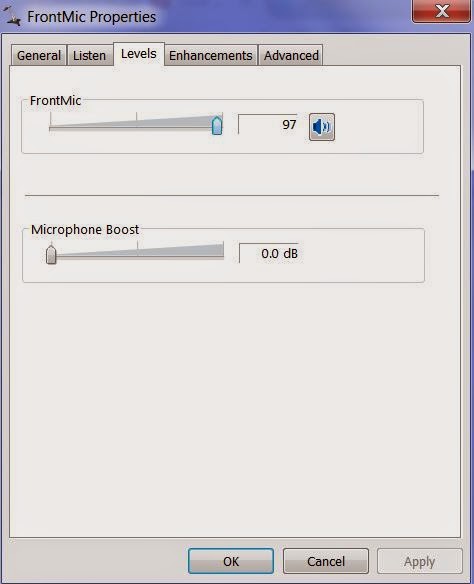
Step 8. Go to the "Levels" tab and check that your microphone boost is at "0.0 dB" and your regular microphone level is at "100".
Step 9. Go to the "Enhancements" tab and make sure "DC Offset Cancelation" and "Noise Suppression" are both ticked.
Step 10. Click OK and you should be done!


No comments:
Post a Comment